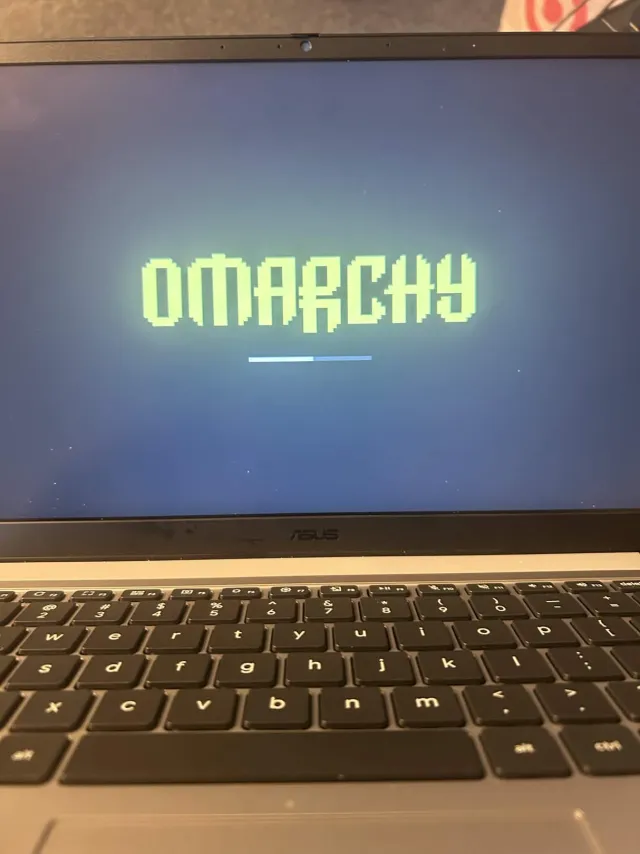
Why would anyone install Linux on their Chromebook? What’s the point?
Here’s where Linux shines above other OS’s like Windows and MacOS, it’s free, it’s open-source, you decide exactly what goes in your computer, and, most importantly, you don’t have a tech giant spying on you and siphoning all of your data to advertisers, governments, and whoever else wants to buy it.
When you first open up your brand new Chromebook you are greeted with big-tech-style graphics of the weird round corporate blob type telling you to “personalize” your Chromebook, which you “personalize” by immediately having to sign in to the internet (there’s not even an option to skip the internet sign-in), so that big poor Google doesn’t go a single SECOND without your data which is rightfully theirs, you owe it to them, they deserve your data, remember all those Google searches you did? For free? Pfftuh, freeloader. Once you go through the whole setup and Google is giddy with your data, you open your new homepage for the first time to see a bunch of google products already installed. That’s fine, it’s a Google computer, whatever.
Intel Celeron N4500, Integrated Graphics, 4GB RAM, 64GB Storage.
By the time you’re able to use your computer, GOOGLE has ALREADY taken 20 out of your 64 GIGS for ChromeOS. NEARLY A THIRD.
Whatever, maybe you can still download some cool apps. HAHAHAHAHA. Who said big brother Google was going to let you do that. No no no silly bear, you get Candy Crush, no more, no less. Candy Crush and only the apps Google themselves has approved for your sensitive little consumer eyes. They wouldn’t want you to be hurt.
You may be asking, “Well why even buy a Chromebook then?”. Good question. Honestly, my 12 year old Mac was on its last legs and school was starting back up so I needed a laptop in a pinch without necessarily spending money I wasn’t ready to spend just yet. That’s where my beautiful Chromebook came in clutch. $140 for this baby. (Not $100, but rounding down sounds better)
For as much as I don’t like Google, I really do love this laptop, I loved it from the very beginning. It just works, its battery lasts forever, I can watch Youtube in bed when I don’t want to be at my desk. I can write essays on the fly, it’s awesome. But those limitations I faced with ChromeOS really got to me. The laptop didn’t even feel like it was mine, it felt like a corporate environment. It gave me that disgusting feeling you get when you gaze into your iPhone camera and you feel like there’s someone watching you on the other end. Unsettling.
So I decided to change it to Linux. How hard could it be? People switch their PCs to Linux all the time, this was probably even easier. HAHAHAHAHAHAHA.
.
I didn’t realize just how badly Google wanted my data. They protect these things better than government servers. The level of security and protections was ridiculous. However, I have officially become one of the very first people on the internet to have successfully ported Linux onto the ASUS Awasuki model Chromebook and to have documented the process (highly specific I know).
So what’s the process actually like? It’s pretty simple actually. Not easy, just simple. First you have to verify your device is x86_64, this is to verify that the programs you’re going to download to disable write protections, as well as the actual OS you’re going to be installing, actually work. Next you need to back up all of your data because you’re most likely going to be wiping your drive (unless you’re double booting). I only had 64GB of space to work with so double booting was not really an option. You also need to verify what model chromebook you have and cross-reference with this list https://docs.mrchromebox.tech/docs/supported-devices.html. This is how you’ll determine what’s even possible on your chromebook and how you’ll best disable write protection. Then you need to go into developer mode, usually by holding esc + f2 + power button, though it may vary by model. By doing this, you are wiping all of your data, so make sure you’ve got it backed up somewhere. Your computer will go black for a while and after a loud beep or two, it’ll come back online. This is also typically the point where you have to do a strange ritual to disable write protection. You then open a terminal by pressing Ctrl+Alt+F2 and logging in as chronos or root. Then you run the following command:
cd; curl -LOf https://mrchromebox.tech/firmware-util.sh && sudo bash firmware-util.sh
This will install the firmware necessary to disable write protection, install Linux, and FREE you from Google. From there you just follow the commands, and install your new OS! Pretty simple.
The Disabling Write Protection Ritual
Disabling write protection is machine-dependent… the method varies. For some you have to remove a WP screw on the back of the motherboard. Others have to disconnect their battery and leave their computer plugged in while they enter commands into the terminal. The mrchromebox.tech page listed 2 possible methods for my machine (the glorious ASUS Awasuki): Plugging in a SuzyQ cable and/or bridging jumpers. What does any of that mean? A SuzyQ cable is basically a cable developers use to bring chromebooks back from the dead, debug chromebooks, essentially allows them to work on chromebooks and work their developer magic. You input a few commands into the terminal, the terminal will prompt you to press the power button, you press it when it prompts you to, and you’re good to go.
(By the way every time I reference putting commands into the terminal, those commands can be found in the mrchromebox.tech docs, please refer to those if you are considering going through this process.)
Bridging jumpers is more complicated. You look around on your motherboard for 4 consecutive little holes lined up in a straight line. Then you have to connect the correct ones together via a conductor, some sort of metal, and boom, write protections are disabled. Except, if you stop touching the two microscopic holes together, your computer will instantly reboot with write protections enabled, so you need a steady hand for this.
My Process
When I first began this process, I thought it would be clever to run Linux from a USB, that way I could technically “run Linux on my chromebook” but keep ChromeOS in case something went wrong, and, most importantly, I wouldn’t have to disable write protections at all, I could skip the hardest and riskiest part of the process and go straight into enjoying Linux. So I enabled developer mode, punched the commands into the terminal, and watched the magic… not happen. Or happen, just very, very, VERY slowly. A typical Linux Mint install takes about 2-5 minutes. Mine took 1 hour and 25 minutes. I interrupted the process several times because I was convinced that the progress bar was stuck. I restarted the process, flashed the flash drive with Linux again, nothing. The progress bar kept getting stuck at the same place every time I began the process again, I was convinced the file must’ve been corrupted in some way. That’s when out of the corner of my eye I saw the progress bar nudge just a tiny bit. I thought I was hallucinating. I stared intently, nothing, I decided to give it more time. 10 minutes, the bar moves again, it’s making progress! I couldn’t believe it. I decided to just let it sit. Sometimes it would go 30 minutes without nudging, I just let it sit. I thought maybe once I was fully loaded into Linux that speed wouldn’t be an issue anymore. Wrong again. I boot in, feeling accomplished and feel… disappointed. This was Linux? This is it? The legendary open-source software that techies use is this plain and boring? Not to mention, it was unusable. It was so incredibly slow it could barely function. I thought it was just due to my chromebook being underpowered but this was Linux, this is THE program that runs on potatoes and Kindles and old Gameboys. Plus ChromeOS ran fine, why not Linux? Well as it turns out, my usb is just extremely slow and the entire OS was running from my USB which as it turns out is drastically different from running on a local disk. Wasn’t a computer thing, it was a USB thing. I almost thought about calling it there. Fun experiment, sure, but ultimately fruitless. But I had invested so much time, and I KNEW what was possible now. Going back to ChromeOS didn’t feel right. I was determined to try again, so I looked on mrchromebox.tech and as it turns out there are two ways to disable write protections, as discussed previously, the SuzyQ cable and bridging the jumper slots. Apparently there was one other user with my exact chromebook who tried bridging the jumper slots to no avail and got a reply from mrchromebox saying that the SuzyQ cable was probably the only way. So I ordered a SuzyQ cable and decided to play the waiting game… I installed Linux on my PC. I got impatient so I wiped the drive and started fresh. (daily driving ArchLinux is for a different article) Anyway, once the SuzyQ cable arrived I was ready. I plugged in the cable per the instructions, ran every command, pressed the power button when prompted and… the write protections were still enabled. I couldn’t believe it. This was my only chance and it was all for nothing. I tried again and again, first rotating the cable, then trying by inserting different cables, still wouldn’t budge.
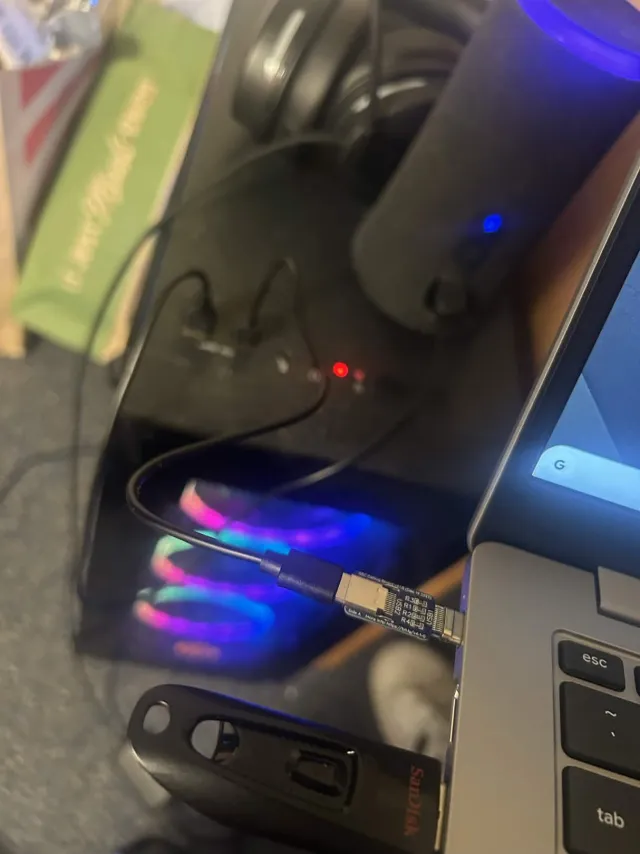
I was in too deep at this point. I had sank MONEY into this. $15. Not much but considering the emotional attachment I had grown to this project, it only reinforced me feeling like I needed to finish this. So I unscrew the back panel and start digging. Try the battery method. Nothing. I look for the jumpers but can’t find them. Determined, I turned on my lamp, opened my window, turned on my phone’s flashlight, and began looking. I still could not find them. I began getting worried. I open the camera and zoom in 5x to the motherboard. I inspect every square millimeter, every single chip, every single dent, until finally… I see them. Four little holes aligned in a straight line right next to the wifi chip.
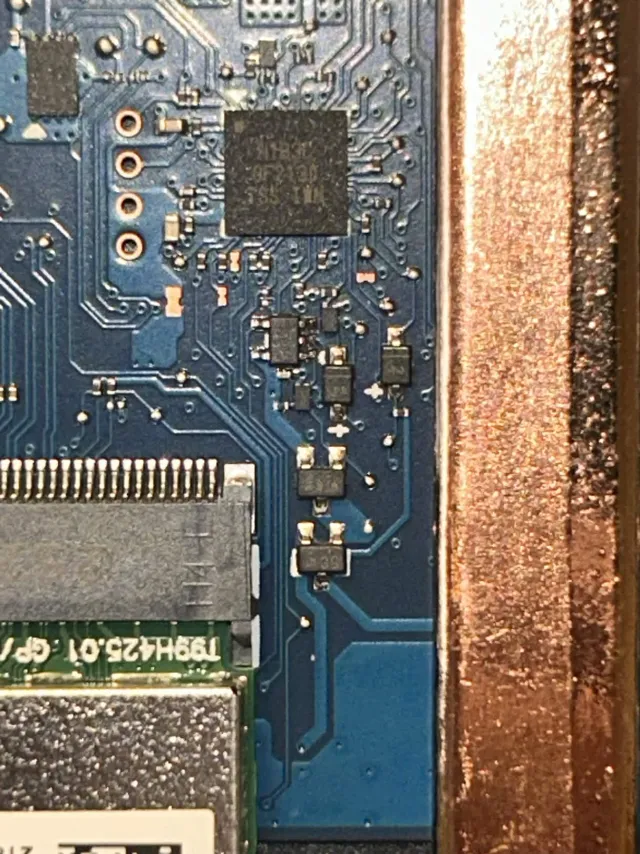
Now I needed something minuscule to bridge these together. I didn’t have paperclips and I wasn’t about to go to Walmart just to buy paperclips. So I found an old micro-HDMI cable that I wasn’t using and I chopped the tip off with some scissors. I cut another end of the cable until I was left with a small strip of cables. I began slowly cutting into the rubber until I exposed the inner foil layer containing the copper wires. I began to unwrap it with my hands but the foil cut my thumb so I resorted to cutting with scissors only. Very slow, very tedious, until I got a small group of copper cables together. Except they were STILL coated with another protective layer, so I scraped it off with my fingernail until finally I was left with a copper cable, slightly thinner than a hair, and I was ready. I laid the computer face up on my lap and exposed motherboard facing me. I connected the cables and went to turn on my computer, my hand instantly became shaky, I realized this was going to be harder than I thought. I got a firm grasp of the cables and inserted them in the motherboard. I was locked in now. I turned the computer on. Placed my chin against it so it didn’t move while I plugged it in (you need to have every power source including the battery disconnected while you bridge the jumpers for safety reasons, you are essentially shorting the WP, you could shock yourself).
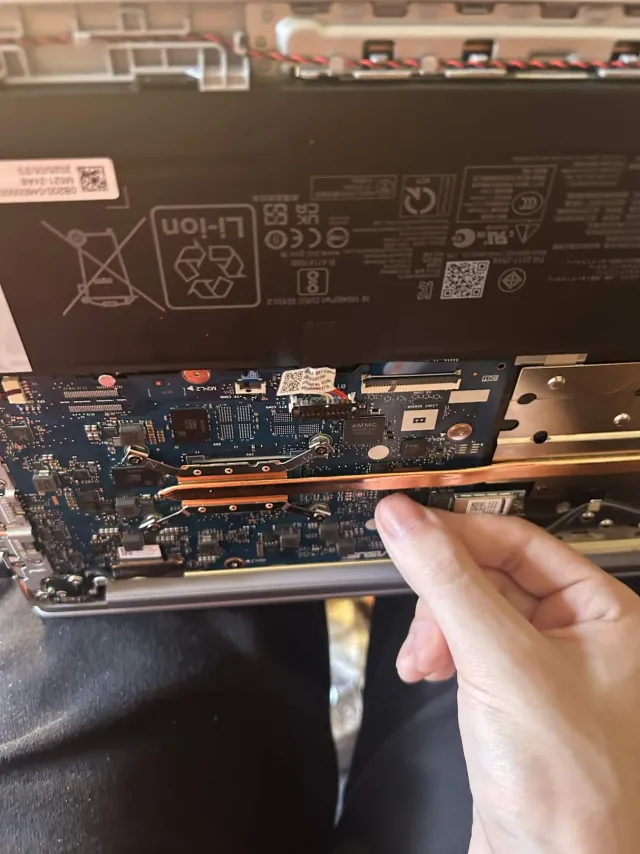
I start typing the code in, slowly, steadily, when all of a sudden… I’m in. I let go of the copper cable and finally boot into Linux normally. This time, I went with Omarchy because it looks cooler than Mint. Utter shock. Disbelief. Joy. I could not believe I’d done it.
Prognosis
Overall, I’m happy I did this. I love using my laptop even more now and it truly feels functional. I installed Ollama on it, I synced my Obsidian notes with my PC, it just feels like it works FOR me, not like it’s trying to sell me something. Plus, it’s legitimately nice to use. Omarchy uses the hyprland window manager which makes new windows split in the most satisfying way. It feels PRODUCTIVE. I can code on it, I can play videogames on it (albeit very low-powered games, but games nonetheless), I can do everything I want on it, and I can uninstall literally every program I don’t want, I’m not stuck with them like I would be on ChromeOS or Windows. If you’re going through this process or if you’ve ever thought about switching to Linux, I strongly recommend you do it. Almost every technology on earth is built on linux, from MacOS, to every server on earth, its all Linux. Not only does it give you a new perspective on technology as a whole, the customization is so much fun. If you run into trouble there’s a billion wikis and forums available to help, not to mention AI models who are trained on Linux data and are basically experts. If you have moral quarrels regarding AI however, local models running on your machine (not in a data center in Texas) can debug your code for you, for free, ethically, without sending your data anywhere. The level of freedom is unparalleled, it’s something you truly ought to experience for yourself. Stripping down a laptop and jamming copper into it until it does what you want it to may be a bit much, but taking control of your technology is something becoming increasingly invaluable as we enter an era where our data is a commodity sold to the highest bidder, privacy is becoming obsolete, spying has become accepted, and computing power is increasingly becoming something that can only be accessed by a privileged few, as opposed to a tool which freed millions from an era of ignorance and brought the world into an age where anybody can access any piece of information they wish.